

|
|
|
 |
||
|
|
|
|
||
 |
|
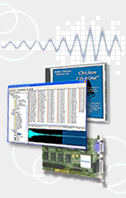
EPS/ASR Visual Editing System™ (EAVES™) edits the parameters of your EPS/ASR graphically, rather than numerically with a slider and 22-character display of the sampler. Parameters are logically grouped by instrument, layer and wavesample. All parameters within each group can be seen all at once, without having to scroll to different pages as in the built-in sampler display. EAVES™ was written from the ground-up using the latest Macintosh development tools and follows the latest Apple user interface guidelines. Some highlights of EAVES™ are: - Parameter changes immediately sent to sampler for quick audition. In the rest of the tour, we will refer to EPS/ASR Visual Editing System simply as EAVES™. Apple Computer has dropped support for their original MIDI driver, MIDI Manager, and is now supporting the Open Music System (OMS) written by Opcode. For this reason, we have chosen to use OMS to support MIDI in EAVES™. OMS is included in QuickTime 2.5 or later. The OMS extension and related software are available from Opcode or their web site http://www.opcode.com. To use EAVES™, you need to create a Studio Setup using the OMS Setup application. Please refer to the OMS documentation on how to create a Studio Setup file. After the Studio Setup is created, launch the EAVES™ application. You will be greeted with a startup screen. The application is in demonstration mode until the registration code is entered. If you have a registration code, you may enter it now by clicking on the Registration... button. You will be presented with a Registration dialog box. Your name must be entered exactly as it was spelled (upper/lower case letters are important) at the time that you registered the program. Enter the registration code in the second field. When all information is entered correctly and the OK button is clicked, EAVES™ will become a fully working application. The demonstration version only allows viewing (no editing) of parameters in Instrument 1, Layer 1, Wavesample 1. After clicking on the OK button in the startup screen, the EAVES™ Setup window will be displayed. Follow the instructions in the window, especially the part on making sure the sampler is set to MIDI SYS-EX = ON. Make sure that you select the proper sampler model so that EAVES™ can be customized for your particular model. If you want to verify that OMS has proper output connection, you may click in the Play Fanfare into Sampler button, which will play a couple of chords on the channel displayed in the menu to the right of the button. When everything is setup the way you want it, click on the OK button. |
||||||
|
||||||||
|
||||||||
|
© Copyright 2012 Chicken Systems, Inc. All Rights Reserved. | Back to Top 714 5th St. SE, Willmar, MN 56201, USA | [email protected]. |


