

|
|
|
 |
||
|
|
|
|
||
 |
|
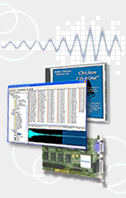
WaveSample Viewer You will be asked to save the downloaded sample. The downloaded wavesamples are saved in the AIFF format. This is a standard, cross platform format. This format was chosen so that any waveform editor (shareware or commercial) that can read AIFF files will be compatible with EAVES™. A progress window will keep you informed on how much time has elapsed downloading the sample, and an estimated total time to download the sample. When the download is complete, a window will open displaying the downloaded wavesample.
You can quickly find the loop start and end points by clicking on the "Go To" buttons. Once you are at the loop offset points, you can graphically change the values by clicking and dragging on the vertical markers. Even though we recommend using another application to modify the downloaded wavefore, EAVES™ provides some basic wave editing. Selection of all or part of the wave is permitted. This allows you to cut/copy/paste wavesamples. There are two ways to select the wavesample. One way is to first put the waveform "in-focus", that is, in a mode that allows you to use the Edit menu. You can do this by either clicking on the waveform or using the tab key to navigate to it (the same way that you can navigate between edit fields). Just type the tab key until a dark rectangle surrounds the wavform display, as shown below. Waveform display is "in-focus", for using the Edit menu. Waveform display is "out-of-focus", can not use the Edit menu. Once the waveform is "in-focus", you can choose Select All from the Edit menu, then Cut/Copy/Paste as normal. You can select part of the waveform by using the mouse to click and drag, just as you would do with a text editor, then Cut/Copy/Paste as normal. If you have multiple wavesample windows open, you can Cut/Copy/Paste between them. The Cut or Copied wavesample data is stored in a folder called "Scratch Folder" located in the same folder as the application. The file is called WS Scrap. It may have a number after it if another wave window is open. These waveforms are in the AIFF format and may be copied and used elsewhere, such as a waveform editing program. Changes to the current waveform may be saved using the Save... command in the File menu. You can also save the current waveform to another file by using the Save As.. item. Undo is also available. Wavesample files (uncompressed AIFF) can be imported into this window by clicking on the Import button. When all editing is complete, you may send the waveform back to the sampler using the "Upload" button. |
|||||||||
|
|||||||||||
|
|||||||||||
|
© Copyright 2012 Chicken Systems, Inc. All Rights Reserved. | Back to Top 714 5th St. SE, Willmar, MN 56201, USA | [email protected]. |


