
|
Miscellaneous Functionality |
Translator can do quite a few other things besides than translating files.
Drag Files out of the Interface and onto your Software Sampler To Load Them
This is best used with Kontakt. Simply drag any .nki file from the Object List (onscreen or detached) and drop it on the Kontakt rack. It loads! In fact, with Kontakt this works with various other formats, such as EXS24 and HALion. (Ironically, this triggers the Chicken Systems Conversion Engine within Kontakt itself, as they license Translator technology from us.)
Deleting and Renaming Objects On Proprietary Drives
You can delete any object of a proprietary drive by simply hitting DEL or BACKSPACE, or by right-clicking on the file(s) and selecting Delete. (Don't worry, you are asked to confirm your decision.) You can also rename by clicking again on a object (or via right-click as before). You need to have Preferences-General-Disallow Renaming unchecked for this to work. (The purpose behind the option is so you aren't renaming by accident by simply navigating around the drive.)
Move Any Type of File ON and OFF Proprietary Drives
This is especially useful for Kurzweil and MPC proprietary drives. Since later versions of the Kurzweil OS read off regular FAT just fine, it can be desirable to simply move the files from the disk onto your hard drive and abandon the proprietary CD/drive altogether. Likewise, later MPC's, starting with the MPC-1000, read older MPC files but don't have drive hookups to allow the proprietary drive to be attached. Just move the files off the drive and write them to a Compact Flash card for reading with the new MPC.
To extend this concept further, perhaps you want to make compilation CD of various proprietary files of the same format. Just make a blank Virtual Drive formatted for your format, then simply move files from CD's, disk, or other Virtual Drives onto the blank Virtual Drive. No translating will be done, Translator is simply reading and writing. Since Translator is the only major or minor program to read AND write proprietary drives, this is possible.
It should be noted that Translator allows moving of ALL files, not just the ones it deals with. This is the case with Kurzweil and MPC, Kurzweil Macros and MPC .SET and sequences files are all movable. Ensoniq disks have many other file types than just Instruments - it includes Macrofiles, Songs, Sequences, Effects, and more. All are available to be moved (you must set Format Preferences-Ensoniq-Show All to see these files to move them, however.)
Lastly, remember that all dragging within Translator goes from THE RIGHT TO THE LEFT; from the Object List to the Container Pane.
Access To System File Functions (Windows-only, Translator 6 only)
When you right-click on a object in the Container Pane or the Object List, under Local-External Drives, you get the appropriate System Menu for that object (along with some additional Translator-specific functions). This enables you to do a great many system-related functions to the object, such as opening, deleting, compressing, getting file information from GetInfo (Mac) or Properties (Windows), and more (depending on what is installed on your system).
Formatting Drives to Proprietary Format
Since Translator writes objects to proprietary drives, it certainly can format them. Use the Operations-Format menu (or right-click on the drive if you can see it under Proprietary Drives) to format a drive to proprietary format.
Converting INTO Bank files
This is discussed in the Translating section, but it’s good to repeat it. Not only can you convert INTO any other format and create new files, you can also convert INTO an existing file and add to it’s contents.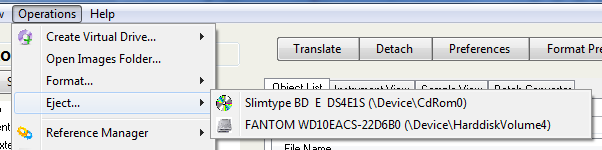
For example, let’s say you have a SoundFont with a bunch of Presets of your favorite sounds, and you want to add that great Kontakt electric piano you use. Just drag the .nki from the Object List and drop it on the SoundFont in the Container Pane. Translator will convert the Kontakt file to SoundFont format and add the Preset and the associated samples into that SoundFont.
Formatting Drives to Proprietary Format
Since Translator writes objects to proprietary drives, it certainly can format them. Use the Operations-Format menu (or right-click on the drive if you can see it under Proprietary Drives) to format a drive to proprietary format.
Ejecting Drives
Sometimes it’s just easier to eject from a program instead of just hitting the eject button on the drive. And, that’s only Windows - for Mac you have to have some way to eject a disk. Let Translator do it. Just use the Operations-Eject menu, or use the right-click menu on a drive, to eject it automatically.
EXS24 31-Character Renamer
Translator™ has a clever little feature regarding EXS24 instruments. Only Logic9 supports sample file names larger than 31 characters in EXS24. Although Apple designed Logic9 EXS24 files to be loadable into EXS24’s of earlier Logic versions, there is a possibility that if you use sample file names larger than 31 characters that you won’t be able to load the samples. Below is a full explanation:
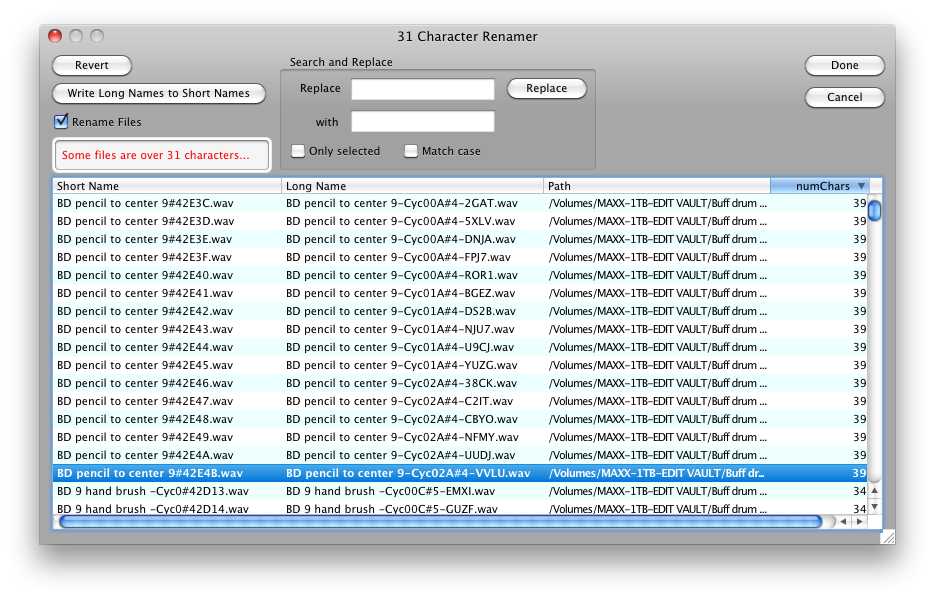 An EXS file has a sample chunk for every referenced sample, it’s not a Zone, but a reference to a sample. For Logic 9 it holds 1) a Short File Name (31 or lower characters) that indicates the name of the sample file, 2) the path to its folder, and 3) a Long File Name, which is the sample file name in it’s full length.
In OSX, all files have an internal short file name and a displayed long file name. They are the same if the name is 31 chars or less. If more than 31 chars, the long file name is the full name and the short file name is that weird naming thing you see. IMPORTANT: The short file name is NOT part of the file, it is part of the directory naming system on the disk. If you move this file or send it to someone, the short file name will change; the random part after the “#” changes.
In Logic 8 the sample chunk does not have the Long file name, the Short file name is the only name the sampler has to go on. This is how Logic 8 can read a Logic 9 EXS24 files, it just recognizes the short file name, finds it if it’s still valid and loads it. But as you’ve seen, if it’s not the original file and the Short file name has changed without you knowing it, you’re toast.
(The only exception to this is that Logic8 EXS24 files have 64 bytes dedicated to the Short file name area, so you can put in a Long file name in there (of course using other software than Logic) and EXS24 will load it. It just won’t save it as a Long file name, and EXS24 saves those files sometimes without you knowing it.)
So, in summary... on EXS24 files that reference >31 file names there is this problem. You can choose to make the library Logic9-only or you can (with as little pain as possible) take the files down to the 31char limit. That solution is to take those >31 files and rename them down to the 31char limit so the short name and long name match. That way they can load into Logic 8 and Logic 9 with no issues.
Translator™ has a 31 Character Renamer as part of the Reference Manager routines. Get your EXS24 in the Object List, right click and choose Reference Manager->Fix References.
Translator™ will look through the file first and see if there are any >31 names. If there are, it brings up a dialog with all the names. You can manually change the long names (or use the Search-Replace thing), and the dialog informs you continually of the >31 name status. The last column tells you the length of the long name.
Here is a typical workflow:
Please use this with care, as if there are other files that depend on these renamed samples they will lose their links.
Also note the Replace-With functions, where you can change the text on many entries without having to do it manually.