
|
Container Pane |
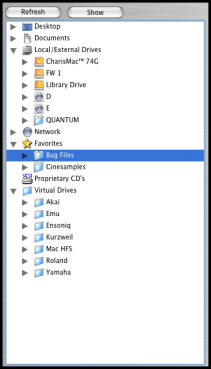 |
The Container Pane shows all the "containers" that files or objects reside. Containers are anything that contains an object. Obvious elements are hard drives, CD's, and folders on these containers. Less obvious ones are Virtual Drives, Favorites and Network. There are six areas within the Container Pane, or can show or not show these by clicking the Show button and selecting what you want to see. Mac Only one object can be selected in the Container Pane at a time. When you select an object, its Child objects show in the Object List. Right-clicking on an object shows a contextual menu, which expose most of the powerful features of Translator. You can convert files by selecting Convert As. and then the appropriate format. You can access the Tools (Program Tools, Sample Tools, and File Tools) areas, and the various Utilities as well. Last but not least, you have the basic Finder/Explorer functions, such as Open, Reveal In Finder, Create Alias, Get Info/Properties, etc. |
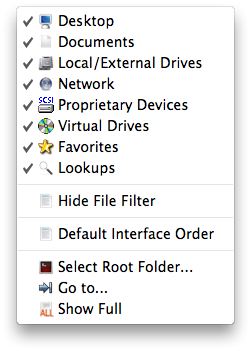 |
Advanced Navigation Functions Go to... allows you to look at a folder without having to manually drill down to it. Of course you have to select the folder using the basic Finder Open dialog, but it allows leveraging the power of the Open dialog. |