
|
Virtual Drives |
You can create, read, and write Virtual Drives with Translator™. Virtual Drives are large files you create, but within Translator™ they appear as drives (under the Virtual Drives section), formatted with whatever proprietary format you want (Akai, Roland, Ensoniq, Emu, other).
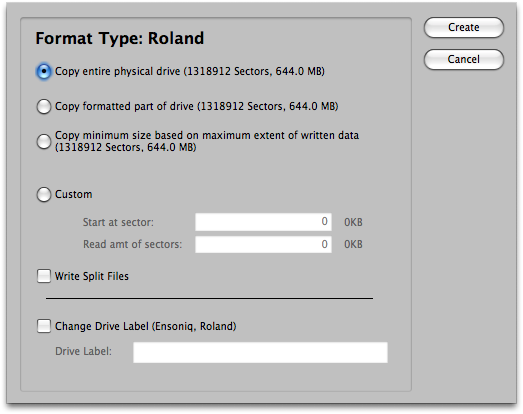
Virtual Drives are the term we use for what most people call "Disk Images". A disk image is NO MORE than a bit-for-bit copy of a physical disk or CD-ROM. Translator uses Virtual Drives in the context of dealing with proprietary disk formats. They are commonly used in two ways: reading a CD/disk or creating your own CD's.
Virtual Drives are listed under the Virtual Drives category in the Container Pane. Each disk format has it's own category (e.g. Akai, Emu, etc.) with a folder icon.
You can add Virtual Drives (that is, disk images) to your Virtual Drives menu by moving those files, or creating aliases or shortcuts of those files or the folders it resides in, and putting them into your Images folder. This is located at:
| Mac | /Users/[you]/Library/Application Support/Chicken Systems/Translator [6 or 7]/Images |
| Windows XP | C:\Documents and Settings\[you]\Application Data\Chicken Systems\Translator [6 or 7]\Images |
| Windows 11/10/8/7/Vista | C:\Users\[you]\AppData\Roaming\Chicken Systems\Translator [6 or 7]\Images |
| Note: On modern MacOS versions, the User Library folder by default is hidden. Navigate inside it by using the Go to folder... Finder command. And on modern Windows version, the AppData folder is often hidden. Again, navigate to it by typing in the path in the Explorer address bar. However, please note we make access to this folder easy - just select the Operations-Open Images Folder menu within Translator, and a Finder/Explorer dialog will appear. |
|
Your disk images need to have the following extensions to the name to be visible: IMG DMG ISO HDA HDS TOAST BIN SIMG.
Translator also looks in any ZuluSCSI'fied SD card that is present in your system. See below for details.
Refresh your display by clicking the Refresh button above the Container Pane, and the Virtual Drives menu in the Container Pane will show your Virtual Drives.
You can drag in and drag out of your Virtual Drive just like you would any other proprietary drive.
ZuluSCSI and Virtual Drives
ZuluSCSI, when working with proprietary formats, uses images (Virtual Drives) natively. Translator provides special support for SD cards that are used in ZuluSCSI, whether the SD card is inserted into the computer's SD card reader, or if the ZuluSCSI unit is connected to the computer via USB. Translator only recognizes a ZuluSCSI'fied SD card if there is a "zuluscsi.ini" file in the root, and when there is, it looks in the folder specified by the "Dir" opcode (if it exists). If it does not exist, it looks in the root by default. This makes it easy to use ZuluSCSI'fied SD cards, you don't have to move the images to the Images folder or connect to it via an alias or shortcut.
Reading a CD or Disk To Create a Virtual Drive
Although it is easy to access and convert off proprietary CD's or disks directly in Translator, it is often easier to make a Virtual Drive of that CD/disk first, then convert off that. Not only does the translation go much quicker, you get a backup "for free" of that CD/disk.
You can create Virtual Drives from existing CD/disk's using Translator. Just right-click on the CD/disk under Proprietary Drives in the Container Pane, and select Create Virtual Drive. The special Write Virtual Drive dialog comes up, and you can read the disk in any numbers of ways.
You can also create Virtual Drives using your favorite CD-burning software. They usually have a CD Copy feature where you can create an image on your hard drive. OSX's Disk Utility can make images from drives too.
Through the years we have optimized Translator's Create Virtual Drive function rather extensively. It isn't uncommon to have trouble reading CD's, because in reality they get scratched and beaten up some. Or perhaps the CD-ROM Drive you are using isn't the greatest. Most disk reading programs tend to encounter read errors and react by aborting the read and erasing any record of what they have already read; or if they do, they don’t continue the read and you don’t get your whole image. Translator™ has special features internally to try as hard as heck to get your data, if if it can't, it'll go on and read the whole disk, so at least you'll wind up with a whole image. Although a purist might recoil at the thought of a imperfect image, we can deal with it. Since we are dealing with audio data, most of a CD is just audio, and most often all the critical hears are at the START of the CD. |
It may be confusing how you can create an image of a disk if your computer doesn't recognize the drive; or as some people word it "mount" the drive, or in Windows if it doesn't have a drive letter. The truth is that your computer always recognizes the drive or disk in some manner, it just doesn't recognize the FILE SYSTEM on that disk. So the Mac complains, or Windows tells you "this disk is not formatted". What Translator and other programs do is simply create an non-intelligent image of the disk as a file on your hard drive. It reads byte 1 off the CD/disk and writes byte 1 on the image, byte 2 off the CD/disk and writes byte 2 on image, and so on. This would be fairly futile, except that Translator CAN read the file systems on these images.
Creating your own CD's From Virtual Drives
Translator can create blank Virtual Drives and format them to any proprietary format (Akai, Emu, etc.), You then can write to them freely. Once you are done, you can burn the Virtual Drive to a CD. This is extremely powerful to make your own compilations.
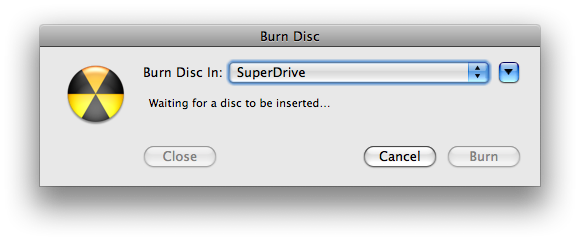
Mac only: Translator ITSELF can burn your CD. Just right-click on the Virtual Drive and select Burn CD... The Mac OSX standard Burn CD dialog comes up and you can burn the Virtual Drive to CD.
However, if you are using Windows or would rather use another burning program, most CD-burning programs support writing raw data images, which is what Virtual Drives actually are. To put it into a visual picture, what you want to do is to burn the Virtual Drive ONTO the entire CD, instead of as a file INSIDE the CD.
IMPORTANT! Check your burning software documentation, or their technical support resources, for information on how to burn these type of files. Since we are not equipped to support other company's products, we are not qualified to answer any questions on how your specific burning software burns raw data images. So please don't ask us.
Toast for Mac and Nero for Windows are good CD-burning programs. Disk Utility on Mac also can burn CD's (it's the same underlying calls Translator Mac uses). A common free one on Windows is CDBurnerXP (it works on XP, Vista, and 7/8/9/10/11). But again, we are just trying to help. It is not our place to assist you concerning other company's programs.