
|
Building Instruments |
Translator™ is primarily a Instrument->Instrument convertor. That means if you have a Instrument file, and you want to load it into another sampler that doesn't load that format, you can convert it within Translator™ and it'll be pretty much exactly the same as the original format, but you can now use it in your destination sampler.
"Converting" single samples, such as WAVE or AIFF files, into an Instrument is a little different of an animal. Sure, it's a conversion, but you are actually BUILDING an instrument from scratch rather than doing an instrument conversion. You are adding information, not merely converting it.
| Chicken Systems has another program, Constructor™, that specializes in this. You can take single samples, plus parts or whole instruments, and generically make a new Instrument, while having full control of how the samples are mapped, what their real-time parameters are (envelopes, filters, LFO's), and how they are organized. You have full keymapping windows and special graphical User Interfaces for this purpose. |
Translator™ can build instruments; you can “convert” a folder of single samples into an Instrument, but you have no fine control about placement or similar things. Still, the samples can be mapped from left to right across the keyboard and given different spans, etc. Here's how:
Go into Preferences and select Single Sample Mapping (see the figure to the right). The defaults should be fine. You can select what the keyspan is and what your keyrange is, plus there are couple of other parameters that can help in getting the sample where you may want it. (Again, remember Constructor™ greatly expands on this.)
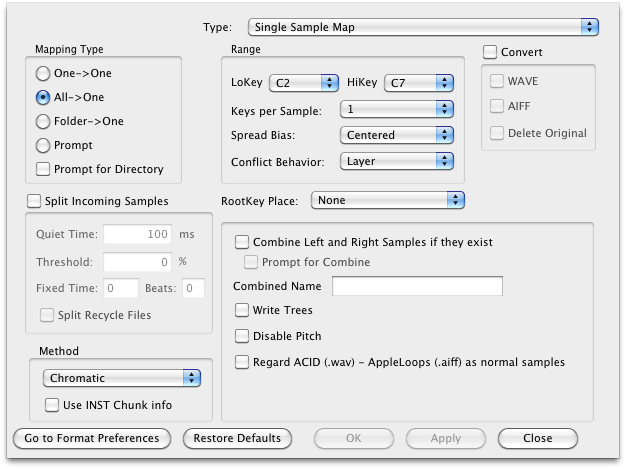
Once you finish that task, close out, and select a folder in the Object List and click the Translate button on top. (Or just double-click on the folder, while the Expand Folder is not checked.) You get the Bulk Export dialog.  For Source Format, select WAVE (or whatever single sample you are converting). For Destination Format, choose your destination Format. Then click OK. Your new Instrument file should be in the same folder the single sample folder is (unless you changed it in the Bulk Export dialog).
If your destination file format is monolith (internally containing the samples), you’ll just have that one object. If your destination format references samples, by default the original WAVE or AIFF files will be used - there actually will be NO conversion, unless the destination requires specifically formatted WAVE files, such as the Akai S-5000 or MPC.
Translator™ is handy for light Instrument building. Once you load the Instrument into your sampler, you may edit them further.
Notes for Proprietary Destination Formats
To build Instruments or Banks on a proprietary format disk (Akai, Roland, etc.), drag the folder from the Object List to the Proprietary disk or Virtual Drive in the Container Pane.
Writing a folder - or folder tree - to a proprietary drive presents some unique challenges that Translator sorts out for you. You can make this easier by having some discipline about what you are throwing at the Proprietary Drive - don't include 300mb pianos, lay off of folders that have 100 Kontakt files, etc. All the obvious things.
Here's how they work:
Rule for source folder contents: If the folder you are trying to convert has at least one Instrument or Bank file, Translator will convert all Instruments and Banks in that folder but will ignore single samples (WAVE/AIFF/etc.). If the folder contains sample file but no Instrument or Bank files, Translator will convert those samples in a All->One Single Sample Map basis and create one Instrument or Bank based on those samples.
Akai Drive/Partition: For every source folder, a Volume will be written into the destination Partition (on a Drive, this is Partition A) and the contents written into that Volume. The exception is Bank formats, which will create their own Volumes. If the Volume is too full to take in the needed objects, another Volume will be created and objects will attempt to be created there. If there is no more dataspace left in the Partition, Translator will move to the next Partition and attempt the conversion there; if it can't, the the next Partition and so on until all Partitions have been attempted. Translator will wrap around if the dropped Partition is after Partition A.
Akai Volume: All created files will be dumped into that Volume unconditionally. See the above rules regarding full Volumes or Partitions; if a new Volume is created, remaining files will be created in there unconditionally, and so on.
Emu Drive (EOS): E3, ESi, and EOS share the same disk format. If it is deteted that EOS Banks already exist on the disk and "Write E4" is set in Format Preferences-Emu, for every Folder considered, a new Emu Folder will be written and Banks created in that folder.
Emu Drive (E3/ESi): E3/ESi does not have the concept of folders, so for every item considered, a new Emu Bank will be created and written.
Roland Drive: Roland's do not have any nesting conept, it's all a flat structure. So all objects are simply written as Patches or Performances on the disk.
Ensoniq Drive/Sub-Directory: Ensoniq and Akai MPC are unique in that they have a full nesting disk structure. When you drop a folder on a Ensoniq Drive or Sub-Directory, the folder tree will be fairly exactly replicated. Ensoniq's however only allow 38 objects per Sub-Directory, so if there is a incoming Folder which eventually needs to write more than 38 files, a new Sub-Directory will be written alongside the one current one and the rest dumped in there. Also of note is that Translator, in filling up a newly createdSub-Directory, first writes new Sub-Directories in that Sub-Directory to handle the nesting, then it will transfer any .efe/.efa fiiles that appear, then it considers the rest of the files if they exist.
Akai MPC Drive/Folder: Akai MPC and Ensoniq are unique in that they have a full nesting disk structure. When you drop a folder on a MPC Drive or Folder, the folder tree will be fairly exactly replicated. Also of note is that Translator, in filling up a newly created Folder, first writes new folders within that folder to handle the nesting, then it will transfer any MPC Programs that appear, then it considers the rest of the files if they exist.