
|
Data Processing Preferences |
These parameters apply to ANY conversion you do. Use with caution! Remember, samples are often shared and might affect another program as well. Plus it may get the sample out of sync with the original format, the operation occurs on the sample itself, not a copy, unless the sample for the new format is created, not used or shared. Sometimes these functions are really handy; often they aren't because most samples are pre-edited anyway.
Clip leading/trailing samples
Truncates the sample from the front or the back. Respects loops - will not truncate to a point inside a loop.
Default: Unchecked, 0%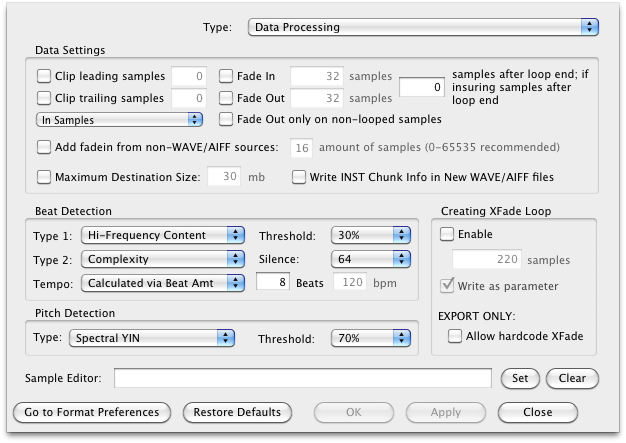
Fade in/out
Fades the sample in or out, given the amount of samples specified. Respects loops - will not truncate to a point inside a loop.
Default: Unchecked, 32 samples
Samples after loop end; if insuring samples after loop
Default: 0
Add fade-in envelope on -> computer-based samplers
Hardware samplers sound great, but often their D/A converters are slow on the uptake; they don't click on attack. Computer samplers are quicker, and can tick or clip on attack.
Defaults: Unchecked, Amt of Samples: 16
Maximum Destination Size
Forces the total allocated size of the destination format not to be above a certain size. Extremely handy when converting into a limited size format such as Ensoniq or Akai or Triton even. For example, when you have a 150mb Kontakt instrument, and you want to import it into the Ensoniq ASR-10, it has to be below 16mb. This is an extreme example, but Translator will do it's best to make it happen. Different strategies are eliminating multiple keyranges and merging ones, removing velocities, and cutting samples so they are not too long. Attrition helps as well - if the Kontakt file had (say) 20% of the 150mb as release triggers, Translator will elect to eliminate those, even though the EPS/ASR supports them. It is also recommended to set the Maximum Size to slightly less than what you need, to allow for other factors.
Default: Unchecked, 30mb
XFade Loop Enable / Samples / Parameter
This adds a Crossfade in the converted loop of the sample amount you select. Write as parameter avoids hardcoding the edit and simply writes the 220 sample xfade as a parameter in the destination format, if it supports it (few do).
Default: Unchecked, 220 samples, Write as parameter=checked
The following are related to Slice Files. For more information on Slice Files, see the Slice Files portion of this document.
Beat Detection Type 1
Default: High-Frequency Content
Beat Detection Type 2
The same types, only for the second pass.
Default: Complexity
Beat Detection Threshold
Default: 20%
Beat Detection Silence
Default: 64 samples
Beat Detection Tempo / Beats / bpm
This is for fixed amounts.
Default: Calculated via Beat Amt, 8, 120
Pitch Detection Type
Selections are: YIN algorithm, Multi-comb filtering, Schmitt triggering, Fast comb filter, and Spectral YIN.
Default: Spectral YIN algorithm
Beat Detection Threshold
Default: 0