
|
Instrument View |
The Instrument View gives you a visual on how the Instrument that you have selected in the Container Pane is mapped out across the keyboard.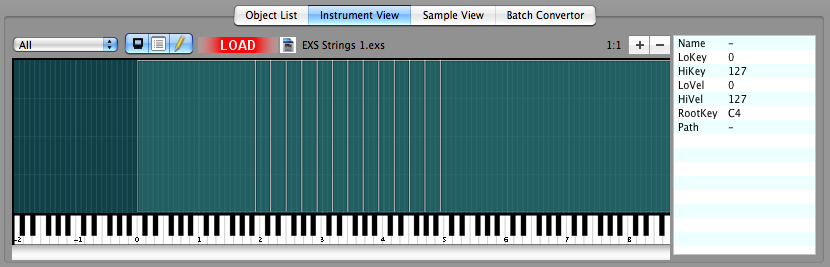
By default, when you select a Instrument-type of object in the Container Pane, this tab gets set and the screen is populated.
By clicking on an area in the graphical screen, it selects the samples assigned to that area and shows the waveform in the Waveplayer. It also shows you some information about that sample in the List to the right. Note: In cases of layered samples, you can only choose the topmost sample. This is just a limitation of the interface.
To unclutter this screen in cases of Keyswitches, Round Robins, Controller-switching, etc. the views are separated by Rule Areas and can be selected by the popup menu on the upper left. A Rule Area is when samples are turned off or on depending on come circumstance other than MIDI note number or Velocity value.
You can zoom in or out of the Screen using the (+-) buttons on the upper right. The Zoom label shows the extent of the Zoom.
The triple-sticky-button allows you select certain options:
Auto-Display
When checked, this tab gets selected when selecting a Instrument-type object in the Container Pane. Unchecking it defeats this auto-selection.
Show List
When checked, the information list on the right appears.
Compose
Calculating the mapping of an Instrument can take a little more time than just getting the referenced samples of that Instrument. By unchecking this, the conversion engine will skip calculating the mapping and your response may be a bit faster. Of course, you sacrifice viewing mapping on this screen.
The Instrument View also allows you to load the currently selected Instrument - NO MATTER WHAT THE FORMAT - and play it by clicking on the keyboard or through your MIDI keyboard. See the Playing Instruments section in this document for more information.
This screen can be detached from the main window by clicking the Detach button above the right-pane. See Docking Dialogs for more information.