
|
Using the Sound Database |
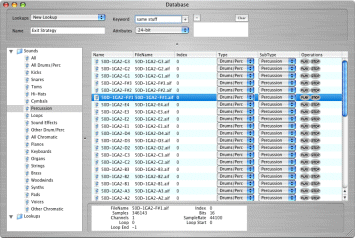
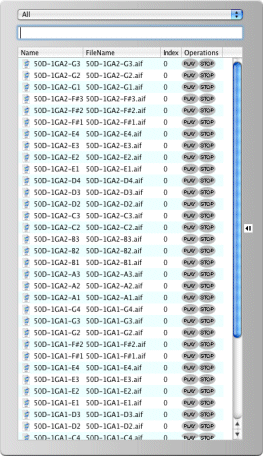
The powerful Sound Database lists all your entered samples in a list. It can contain WAVE, AIFF, or .mvo-based Samples of any bitrate, samplerate, or length. There is only one Database for you to use. In future versions there will be the ability to have multiple Databases. You can access the Database with the Sound Database Simple Interface, the Sound Database Editor, or via any Import context menu. Each Sample File, or sample within a .mv0 file, can only have one listing. There are two main categories, Drum/Percussion and Chromatic. Most sounds fit into one or the other category. Chromatic are sounds that are pitched and rise in pitch up and down the "keyboard". Drums/Percussion are "non-pitched" sounds that usually play on one key. (For the purists out there, all sounds are "pitched" in one degree or another, but we are using the term in the sense of playing the sound in equal-tempered increments.) Each of these two categories have several fixed sub-categories. You can view one of these sub-categories, or you can choose to look at ALL in a certain category. Or, there is an ALL listing where you can simply see all your samples without breaking them down. Each column gives you a certain amount of information:
Note that you can change what category/subcategory your listing is filed under by selecting another cat/subcat in the listing. Clicking on the headers enables you to sort according to each column. Importing |
  |
|
When you import a .mv0 file, each sample usually has a Category listed in the sample header data. MV Kit Creator™ takes this and converts it into a Sound Database-style Category and Sub-Category. Mac Aliases Simply having a Database means nothing unless you can do something with it. That "something" is dragging listings out of the Sound Database or Sound Database Editor onto a Pad on the main interface. We advise using the Sound Database as an easy way of bulding your kits. Please, please notice that the Sound Database is integrated in the Partial/Patch Editor (in the SMT section) and any Import right-click context menu you may encounter.
|
||