Just like the MV-8000, MV Kit Creator™ has 6 Pad Banks of 16 Pads each. Each PadBank corresponds to 16 consecutive keys on a keyboard, starting with A0 (MIDI note 21, MV Kit Creator™ regards middle C as C2). When clicking on a Pad (or accessing it via MIDI), the basic setup of that Pad appears on the Main Screen. This includes the sample assigned to each of the 4 Zones, the velocity values, and the volume.
When you click on a Pad, it becomes the Current Selected Pad. It is on this pad that you perform operations on (with the exception of a drop from an external source or from the database).
There several different ways of assigning samples to Pads:
- Drop sample files from outside the application onto a Pad.
- Drop samples from the Sound Database or Sound Database Editor onto a Pad.
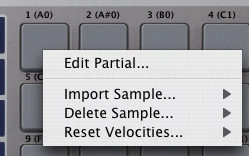
- Right-click on a Pad and choose Import Sample..., from there you choose which Zone you are importing to, and then you choose Browse... or a sound from the Database.
- Click on a Zone on the Main screen
|
 |
Each Pad can hold it's own set of Partial parameters.
Edit Partial...
Clicking this right-click option displays the Partial/Patch Editor page, and allows you to edit the Partial assigned to that Pad.
Import Sample
Import any samples into one of the 4 Zones of the Pad. You can Browse for a samples, or choose one that is already in your Sound Database.
Delete Sample
Clear one of the Zones of the sample assignment. Note: this does not delete the sample file! (Thankfully.)
Reset Velocities
In Preferences - General, there are 4 Velocity modes. Using this right-click option automatically sets the Zones to the selected Velocity Mode.
| MV Kit Creator™ LE Limitations: You can import samples using Browse... and by dropping samples from outside the interface, but you cannot import from your database. You can only play a Pad by clicking on it; MIDI is disabled. |
|
