Just like the MPC, MPC-KC has 6 Pad Banks of 16 Pads each. Each PadBank corresponds to 16 consective keys on a keyboard, starting with A0 (MIDI note 21, MVKC regards middle C as C2). When clicking on a Pad (or accessing it via MIDI), the basic setup of that Pad appears on the Main Screen. This includes the sample assigned to each of the 4 Zones, the velocity values, and the volume.
When you click on a Pad, it becomes the Current Selected Pad. It is on this pad that you perform operations on (with the exception of a drop from an external source or from the database).
There several different ways of assinging samples to Pads:
- Drop sample files from outside the application onto a Pad.
- Drop samples from the Sound Database or Sound Database Editor onto a Pad.
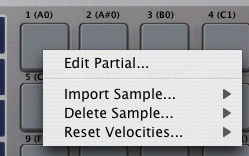
- Right-click on a Pad and choose Import Sample..., from there you choose which Zone you are importing to, and then you choose Browse... or a sound from the Database.
- Click on a Zone on the Main screen
|
 |
Each Pad can hold it's own set of Keygroup parameters.
Edit Keygroup...
Clicking this right-click option displays the Keygroup/Program Editor page, and allows you to edit the Keygroup assigned to that Pad.
Import Sample
Import any samples into one of the4 Zones of the Pad. You can Browse for a samples, or choose one that is already in your Sound Database.
Delete Sample
Clear one of the Zones of the sample assignment. Note: this does not delete the sample file! (Thankfully.)
Reset Velocities
In Preferences, there are 4 Velocity modes. Using this right-click option automatically sets the Zones to the selected Velocity Mode.
| Free Version Limitations: You can import samples using Browse... and by dropping samples from outside the interface, but you cannot import from your database. You can only play a Pad by clicking on it; MIDI is disabled. |
|