
|
MPC Kit Creator™ Preferences |
The Preferences dialog is viewed by clicking on (Windows) Tools-Preferences top menu, or (Mac) App Menu-Preferences.
For each Preference, hovering the mouse over the title or checkbox/item displays a Toop Tip that describes the functionality of that particular Preference.
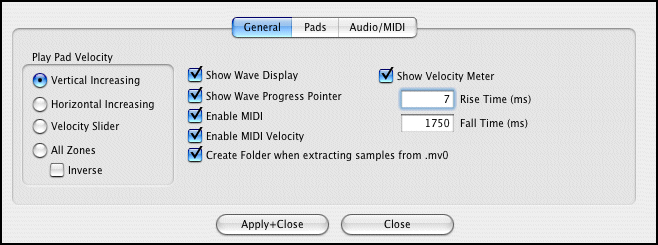
Show Wave Display
Checking this causes the Wave Display to show on the Main Interface when you play a Pad, via MIDI or by clicking on it.
Show Wave Progress Pointer
Shen a wave plays, a progesss pointer will travel across it. Unchecking this removes this behavior.
Enable MIDI
Enables MIDI communication. (Does not have any effect in Free version.)
Enable MIDI Velocity
When unchecked, all MIDI notes coming in will be 127 in value.
Create Folder when Extracting sam[ples from .mv0
If you extract the samples out of a .mv0 file, this wil write a folder with the same name as the .mv0 file and write the samples in there.
Show Velocity Meter
This enables the red Velocity meter, next to the Pds, to respond on strikes. The associated parameters determine how it responds.
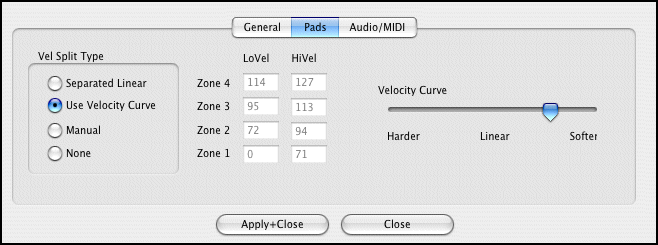
Since a Pad can hold up to 4 samples, you may want to split them via velocity, or layer the sounds, or (rarely) a combination of both.
Velocity Split Type
MVKC provides 4 methods of automatically splitting up your samples on Pad:
LoVel, HiVel
These either show your velocities, or in the case of Manual, allow you to fill in your own.
Velocity Curve
Enabled when "Use Velocity Curve" is selected under Vel Split Type. Moving the sliders changes the numbers within the LoVel-HiVel boxes.
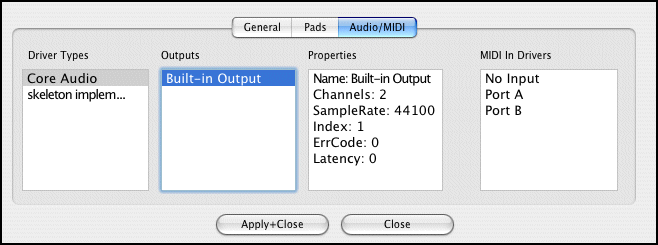
(Note: this tab is not available in this version of MPC-KC.)
Driver Types
These are the Sound Driver types on your system. Selecting one shows the Outputs on the list to the right.
Outputs
These are the outputs on your system on the selected Driver Type on the left. Selecting one selects your output for your app.
Properties
Shows the Properties of the Output you selected on the left.
MIDI In Drivers
Allows you to select the current MIDI In driver that will drive your application. (Note: not applicable in the Free version.)