|
Importing Samples To Pads |
The most operation of the MPC Kit Creator is importing Samples for various locations to the Pads. There are many ways of doing this:
Dragging Samples To Pads
When you drag a sample onto a Pad, the Pad will light up and show you which Zone that dragged Sample will go in via a small red rectangle. Remember, a Pad can access up to 4 samples and it's up to you how those samples are played. Each Zone can be set to play to a certain velocity range (that is, how hard you hit the Pad or via MIDI).
Via Preferences-General, you can set up if the Zones are "lined up" on the Pad up-down, down-up, left-right, or right-left, or simply all layered.
Via Preferences-Pad, you can set up different ways of splitting up the Zones to reflect different velocity splits.
When you drop the sample, the Main Screen will be updated with the new sample and will play on that Pad.
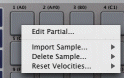
| Using Right-Click Import Menus If you right-click on a Pad, you will get a Import menu for every Zone. Viewing the sub-menu under each shows Browse.. and the entry points of the Sound Database. Selecting Browse... opens a Open dialog allowing you to choose an external WAVE or AIFF to import. |
 |
| Free Version Limitations: You can import samples using Browse... and by dropping samples from outside the interface, but you cannot import from your database. |