
|
Views |
The Motif Creator™ Motif Document has several views so you can work effeciently. Sometimes it is important to get a birds eye look at your Motif file, and sometimes you need to only look at a portion of the file.
Views can be acccess either by the Views top-level menu, or the Master Gear Menu oon the upper right of the document.
Motif files (or we call them Banks) have 6 components to them:
Generally the Voice is the Queen of the Bank, so much centers on the Voice. Because of this, most Views have at least something to do with the Voices.
There are 5 Views, separated into 3 Categories: General, Detailed, and Special.
There are two General Views:
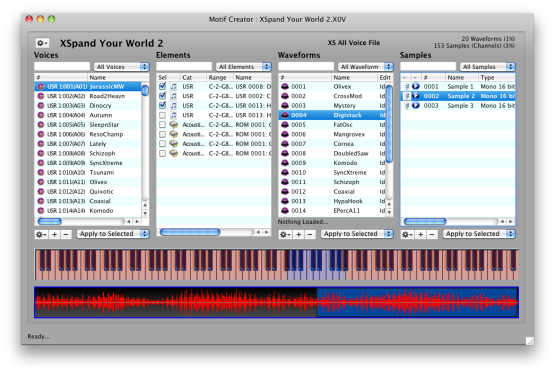
Full View This is a good general view of the Bank. You can select Voices and see the Elements that work within them. You can view the Waveforms, and view the Samples referenced by them. And you can assign Waveforms to Elements very easily, since the lists are fight next to each other. |
 |
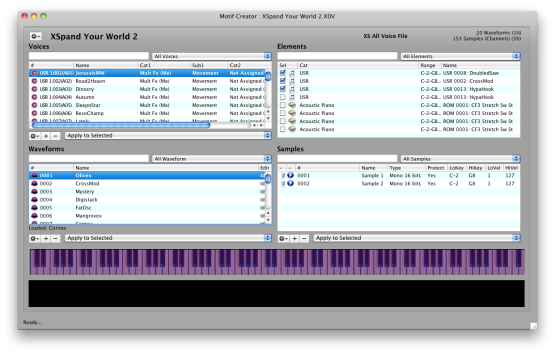
Four Corners This performs the same purposes of Full View, except that it values the details of each view (you can see more of the columns) because of 2x2 alignment. Full view is more valuable when you want to see more entries of one list. |
 |
There are 2 Detailed Views:
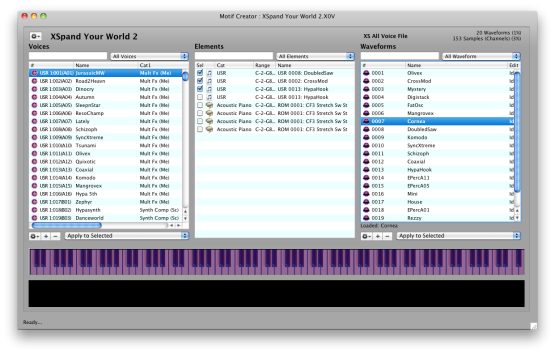
Voice-Element-Waveform View This is when you are most concerned with assign already-designed Waveforms to Elements. The Samples list is omitted since you are already comfortable with the contents of the Waveforms. You have more horizontal information since there are only 3 lists. |
 |
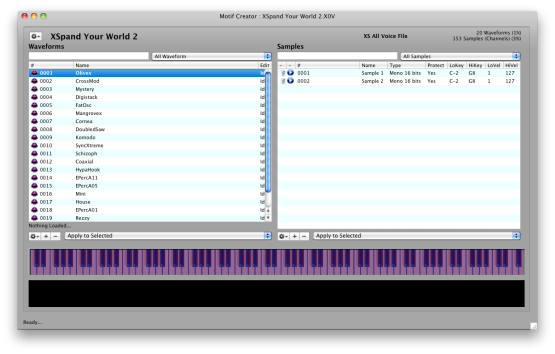
Waveform-Sample View This is for hardcore Waveform designing, you can see the minutae of the Waveforms and of the Samples. You are not concerned with Voices or anything other then the Waveforms and Samples. You have much more horizontal information since there are only 2 lists. |
 |
Finally, there is one Special View:
Performance View This is the Performance Editor, where you can assign Voices to Parts, and thus develop your own Performances easily. Performances do not exist on any other list, since Voices are more commonly used and Performances are "far away" from Waveforms and their dealings. |
 |