
|
Motif Creator™ Preferences |
The Preferences dialog is viewed by clicking on App Menu-Preferences (Mac) or Tools-Options top menu (Windows). Note that on Mac "Preferences" are called Preferences and on Windows Preferences are called Options.
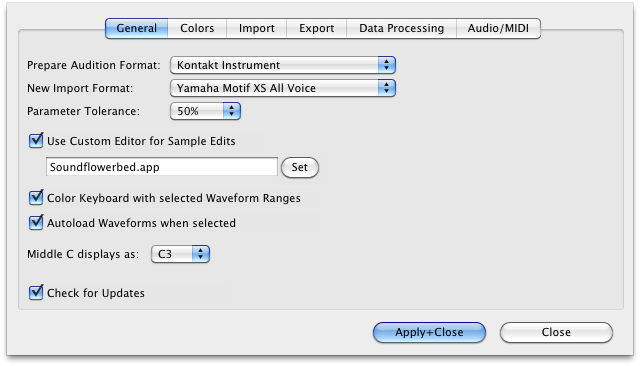
Prepare Audition Format
This is the format that is written when preparing a Waveform for auditioning.
New Import Format
This is the format that is written when preparing a Waveform for auditioning.
Parameter Tolerance
When importing into Motif format, there may be structural limitations where if you wanted to ensure all parameters were converted perfectly, you'd end up with multiple Programs/Presets being created, perhaps in more of a mess than you prefer. Setting Parameter Tolerance to a higher percentage gives some grace to these parameters so the conversion will be a little exact but you'll wind up with a cleaner organization that will be more usable to you.
Use Custom Editor for Sample Edits
This is the app that you'll use for editing samples within the Motif Document. Good sample editors are SoundForge (Mac/Windows), Peak (Mac), DSP Quattro (Mac), Audacity (Mac/Windows), Adobe Audition (Mac/Windows) and more.
Color Keyboard with selected Waveform Ranges
Usually this is set to be on. This colors the onscreen Keyboard with the ranges of the Samples within the currently selected Waverform.
Autoload Waveforms when selected
Checking this has the MC Player load Waveforms as they are selected, allowing you to audition them via MIDI.
Middle C displays as...
On some samplers/keyboards, middle C is defined as C4 (usually U.S.) while others it is C3. All Motifs show it as C3, and by default this is what is shown throughout the program through any Note Number (i.e. A#5, E1, etc.) However, you may feel comfortable seeing it as C4. This control sets the display of Note Numbers program-wide.
Check For Updates
Unchecking this turns off Motif Creator checking for updates automatically when starting up.

Might as well make your Wave Display look great, right? These are the options you have on what your Wave Display looks like.

Import Mapping Type
When adding samples to a Waveform, this option allows you to select and operate many different informational mechanisms to map the samples where you want them to go.
Use KeyRange
This is the keyrange limits placed on imported samples. This means all samples placed will not exist outside these limits. If this is not checked, they are assumed as 0-127.
Use Velocity Range
This is the velocity range limits placed on imported samples. This means all samples placed will not exist outside these limits. If this is not checked, they are assumed as 0-127.
Spread
This determines the default spread between LoKey and HiKey the sample will receive.

Destination Sample Type
Motif Creator allows you to export the samples in the Motif Document out into single samples; this option selects the type. They can be WAVE, AIFF, CAF, or Akai SND files.
Create Folder for Waveforms
If this is checked, Motif Creator will organize the samples per Wavveform and put them into f0olders named after the Waveforms. Otherwise, the samples in the Motif Document will just be written flat.
Write "Inst" chunk into sample files
Although this is not used often in musical circles, a WAVE or AIFF file can hold keyrange and velocity range information for a sample. If this is checked, Motif Creator will write this chunk into the sample. It does not affect the sound of the sample, but it simply preserves it if it will be used again in the same context.
Write SFZ file for every Waveform
This can be handy if you want to observe the layout of each Waveform, or perhaps if you want to import it into another sampler.
Export Text
This controls the listing option in Motif Creator. You can export a formatted list of the contents of a Motif Document for organizational purposes.
Delimiter
This controls the way the linefeeds are written for separated textual lines.
Include Bank - Slot Numbers
A Bank - Slot number is formatted like this: USER1:D14; checking this puts it into the document.
Exclude Blank Voices
Sometimes the User banks have a lot of Voices or Performances with INIT has it's name and they don't include anything in them. This option eliminates them from the list.

Motif Creator can import WAVE/AIFF files that have not been beat detected (that is, the transients have not been calculated) and Motif Creator will detect those transients and import them just like Recycle/ACID/AppleLoops.
But, let’s talk about what a “slice file” (a Recycle file, ACID file, or AppleLoop) is.
What Is A Slice File
A WAVE or AIFF file is simply a piece of audio data. And any “slice file”, such as a Recycle file, ACID file, AppleLoop, or Stylus RMX file, are just pieces of audio data as well.
The only difference between a regular sample file and a slice file is that a slice file has markers written in a information chunk in the file. These markers are placed strategically where transients (sharp sounds) in the file start, so a player that reads slice files knows where the slices are. This is how a Slice File can be played back at various tempos: the player plays back a slice at the position the tempo dictates. At faster tempos, the slices fade out to make way for the next slice; at slower tempos, there is a gap between the slices. (However, some players artificially add sample data to “plug the holes”. Also, good Slice Files are originally recorded at the slowest tempo reasonably allowed, so they never have to be played back at a slower tempo than their “unity tempo”.)
To create a Slice File, one has to “slice” the audio into slices of energy (“beats”) so the playback engine plays it back in a way that makes rhythmic sense. This requires a beat detector.
Slice editors, most notably Recycle, but also ACID itself and the AppleLoop Utility that Apple provides, have beat detection. They do 2 things: They beat-detect a sound file, plus they can play the slice files back at different tempos. They do this with the assistance of the detected markers. Once you have what you want, then you save into a slice file, where the audio stays constant but the markers are written in the file. So when a slice player reads the file, the slices are the secret to it’s capability to play them back at any tempo.
Motif Creator’s Beat Detection
Motif Creator now has a Beat Detector, giving you the ability to import WAVE/AIFF files just like Slice Files.
It is vitally important to pay attention to these Beat Detector preferences. The defaults work for most clear and simple beats, but they definitely will not work with everything. You will need to experiment with these on a case-by-case basis, but keep trying, there usually is a solution to any rhythmic piece of data.
Here is the explanation of the Beat Detector’s parameters:
Importing Slice Files is not as seamless nor as perfect as it appears. But it is very doable, don't let these options deter you.
Pitch Detection
Pitch Detection is helpful making a chromatic instrument out of bunches of WAVE/AIFF files. Try dropping a host of WAV files of (say) a multisampled trumpet, and Motif Creator detects the pitch of each sample and places it on the appropriate MIDI key for it’s pitch, and then sets KeyRanges to fill up the spaces in-between the notes. All of a sudden, you have a trumpet sound on for your Motif without the work of applying the proper rootkey and keyranges.
The Pitch Detection parameters determine how accurate or precise the pitch detection is. Pitch detection does rely on certain variables so different types and styles of pitch detection do a better or worse job than others. Try what seems best for you.

Audio Driver Types
These are the Sound Driver types on your system. Selecting one shows the Audio Outputs and Audio Inputs on the lists to the right.
Audio Outputs
These are the outputs on your system for the selected Audio Driver Type. Selecting one selects the audio output for your app.
Audio Inputs
These are the inputs on your system for the selected Audio Driver Type. Selecting one selects the audio input for your app.
Audio Properties
Shows the Properties of the Output or Input that is selected on the left.
MIDI In Drivers
Allows you to select the current MIDI In driver that will drive the player in MV Kit Creator™. (Note: not applicable in MV Kit Creator™ Free.)
MIDI Out Drivers
Allows you to select the current MIDI Out driver that your application will send MIDI out from. (Note: not useful in MV Kit Creator™ LE or MV Kit Creator™ Free.)
Enable MIDI
Enables MIDI communication. (Does not have any effect in Free version.)
Enable MIDI Velocity
When unchecked, all MIDI notes coming in will be 127 in value.