
|
Bias |
This Bias function page has four sets of operations; Parameters, where you can change the values of incoming parameters on the fly, Output Mapping, where you map different multiple outsputs to others,, Modulators, where you can add modulator settings to an incoming format, and Rules, where you can filter out or remap Rules, such as key switches, controller switches, or Round Robin settings. 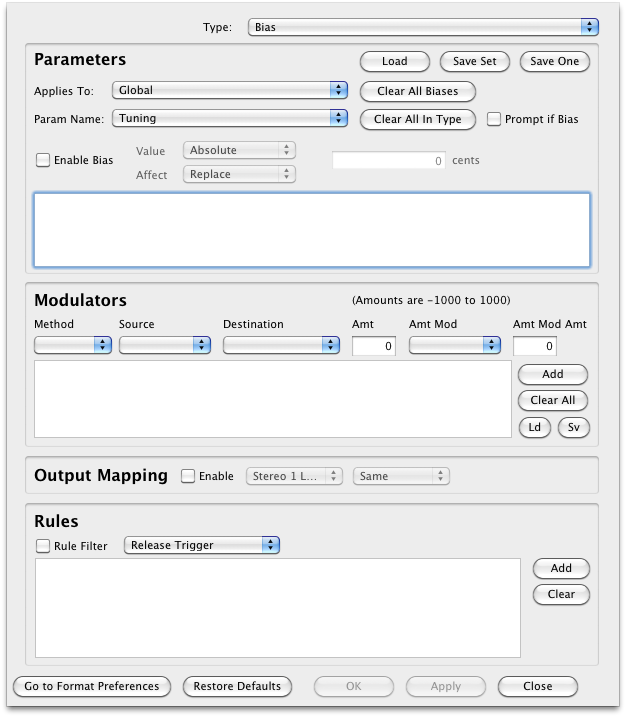
Parameters
Perhaps you have a special penchant for having sounds brighter than they actually are. Maybe you always want things 50 cents sharp. Maybe you are just crazy. Or maybe you are just hungry. Starving or not, Bias allows you to set a certain parameter to be adjusted a set amount or a percentage than what the incoming format specifies.
For example, if you want tuning to be 442Hz instead of 440Hz, you would select Fine Tune and set that to be 1 cent. All the resulting files would be set to 1 cent sharper than normal. Another example could be that you want every thing 10% brighter. Select Filter Cutoff, select Percentage, and enter in 10%.
The following parameters are supported:
There are two sets of Bias settings; one is global, affecting every destination format, and the other is format-specific. They are NOT additive; if you set something for a particular format, the global setting for that format will be ignored.
For your convenience, you can also save a set of Bias paramters for later recall so you don't have to input it again.
Output Mapping
This section allows you to add or modify multiple outputs into the destination instruments you create, in relation to the outputs defined by the source instrument. Since each sampler usually defines multiple outputs differently, either because it has it's own hardware to support, or by way of configuring it's own software output drivers, "exact" translations of multiple outputs get a little fuzzy.
Perhaps the best way to expalin this is via an example. For example, the Roland XV-5080 has 8 output jacks; any output can be routed to either 1) each pair (where it's treated as stereo and the Pan parameter is in play) or 2) each mono output. If you are converting a XV-5080 Patch or Performance to, say, Emu E3/ESi, which only has two stereo pairs, you may want to map how these outputs get mapped, since there isn't a one-to-one relationship between them.
First, Outputs are defined in Translator™ is like EXS24 defines them, with one exception:
Let's talk about the Emu ESi, which has a main stereo out and a Submix stereo out.
Ordinarily (without mapping):
Now, given that, here's how Output Mapping works. Enable it, and you can set any output to route to another output. So, for example, you can set Stereo 5 to go to the Main outputs (that is, Stereo 1). Or anything you want. The default is no mapping, which means Stereo 1 = Same (the top setting).
Now, if you want to set up outputs in EXS24 and then convert to Emu ESi, you don't necessarily need Output Mapping - just follow the rules already set up (above). But if you have a certain way of doing things in EXS24 and you need a custom mapping, it is now available.
Modulators
This section allows you to add or modify any modulator settings that are incoming from an instrument. For instance, if you want to add an extreme pitch bend range on every instrument that comes in, you can add Pitch Wheel ->Pitch modulator and set it to override anything that comes in naturally. The possibilities are endless.
Rules
This section allows you to determine any criteria for incoming Rules to be added or filtered out, such as Release Trigger samples, certain key ranges or velocity settings, text in the sample names, and more.