
|
Master Translation Dialog |
The Master Translation Dialog appears whenever you have started a translation process. This dialog allows you to select what format you are converting to, where the sample files will be written to, along with some other helper functions.
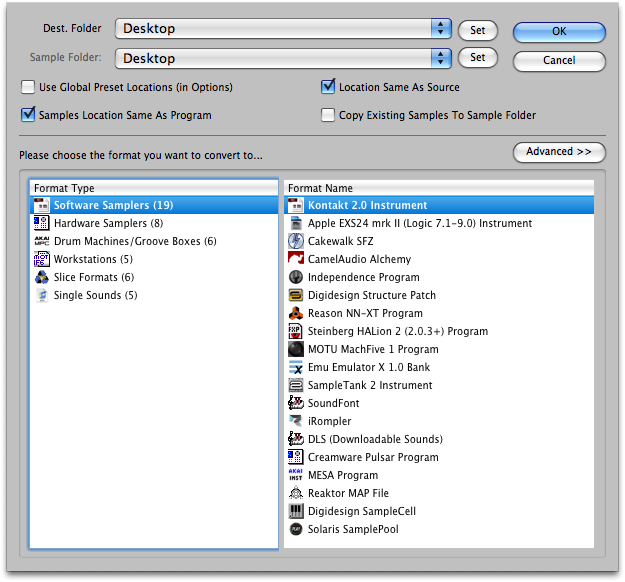 The OK button does not enable itself until accurate information is selected in all THREE areas; the Destination Program Folder, the Destination Sample Folder, and the Format Type list.
Note: Some destination formats do not write separate sample files (such as Motif or SampleTank), and sometimes you are converting a separated fileset (that is, one that references external files) to another separated fileset (such as EXS to Kontakt). In these cases, the Destination Sample Folder will be ignored.
You can set destination folder locations by using the Set buttons, by selecting a parent folder in the pulldowns, or by using the special checkboxes below these lists.
Use Global Preset Locations
Often times, for a particular format, there is a place you always want files to go. In Preferences, there is a list where you can preset these. Checking this invokes the current path listed.
Sample Location Same As Program
This simply forces the samples setting to be the same as the program setting.
Location Same As Source
Instead of remembering the last settings, this forces both destinations to be the same as where the source comes from. (This is ignored if the source is on a non-writable volume or a proprietary volume that doesn't support that file type.)
Copy Existing Samples To Sample Folder
When converting Instruments that rely on external WAVE or AIFF files, and you are converting TO a format that also relies on external files, Translator by default does not copy the samples but instead makes the new Instrument reference the same WAVE/AIFF files the source did. However, sometimes you may want to duplicate the samples for organizational or portability reasons. Checking this option creates new samples in the selected Sample Folder.
Advanced
This button reveals the Format Preferences for the currently selected format. This is extremely handy for updating a certain option without the hassle of closing this dialog and going to Format Preferences, and then coming back.