
|
Bulk Export |
In our terminology, Bulk Export is different than Batch Conversion. It is enabled when you want to convert all (or some) objects in a folder without selecting all of them or using the Batch Convertor.
 The Bulk Export dialog at the right comes up when you select a Folder to be translated, either by double-clicking on the Folder in the Object List, making a selection in the Object List and clicking the Translate button, or by dragging the Folder from the Object List and onto a Folder, drive, or object on a Proprietary Drive in the Container Pane.
Note: for dragging into a Proprietary Drive, this dialog does not come up, because the mere fact of dropping on a Proprietary Drive answers all the choices the Bulk Export dialog offers you.
| Preset Destinations (as shown in Options) | Uses the "per-format" selections as noted in Preferences. |
| Destination Same As Source | Means that the translated file will be written alongside the source Instrument that was converted. |
| As Selected (see below) | Pays attention to the Instrument and Sample custom Destinations that were selected. |
Copy Existing Samples is a global preference that refers to Instruments that use external samples (.wav; .aif) such as Kontakt or EXS24. By default this is unchecked for efficiency, if you are converting Kontakt to EXS to just use the existing samples. (Why not?) However, there are some instances where the user would want the existing files to be copied into a different location, for reasons of portability or sample management. If you want this behavior, check this option.
The Advanced button displays the pertinent Options for the Destination File Type selected in the list.
Instruments and Samples
By default Translator prefers Instruments. In other words, in you Bulk Export a folder that has Instruments (like .nki, .exs, etc.) and Samples (.wav, .aif, etc.), Translator converts the Instruments and ignores the Samples. However, there is a way to "convert" sample files too.
(Please note that Translator's focus is to convert Already-Formed Instruments into Already-Formed Instruments of another format. For the powerful functionality of Instrument Building, please look at our Constructor™ product.)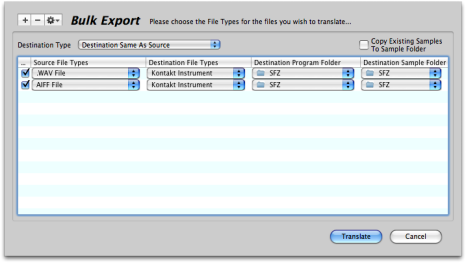
Building Instruments from Samples
There are two ways to "build" Instruments from raw samples. One is by doing a Bulk Export on a Folder that ONLY as sample files; such as .wav, .aif, or similar. If there are no instruments in those folders, then Translator will assume you intend to build Instruments from Samples.
The other way is to explicitly create an entry or entries specifying WAVE or AIFF (see the figure to the right). Then, even if there are Instruments in those folders, Instruments will be built from the Samples.
Single Sample Mapping
Translator can build samples but only in a simple random sort of way. Given a set of samples, Translator will map them out across the keyboard from left to right, according to some parameters that you can set in Preferences-Single Sample Mapping 1 and 2 tabs. See the Single Sample Mapping option in Preferences for more information.
See the figure on the right - this setup will take all the WAVE or AIFF files in the selected folder and create instruments from them.