
|
Batch Convertor View |
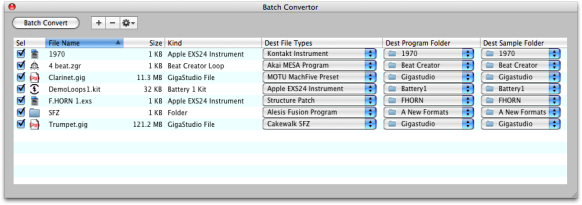
The Batch Convertor gives you the ability to grab a bunch of objects IN DIFFERENT LOCATIONS and convert them at one time. You select it by clicking the Batch Convertor tab panel on the Main Screen.
 We strongly recommend using the Object List to invoke translations, as most/all of your translations will occur in or within a single folder.
As mentioned above, you can batch convert using the Object List by multi-selecting a bunch of objects, but the Batch Convertor allows you to get objects from various locations and add them to the dialog.
You can Add objects to the list by clicking the Add button (that is, the + button), or by dragging objects in from the Object List, Container Pane, or even from the Finder. (Detaching this dialog is helpful in this regard.)
Clear (that is, the - button) clears the selected entires in the list.
Each entry has a checkbox so you can select or deselect the objects you want to convert even after you have put them in the list.
The Batch Convert button button starts the batch conversion process.
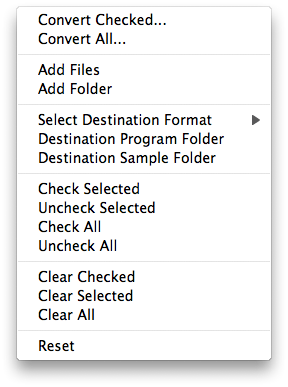
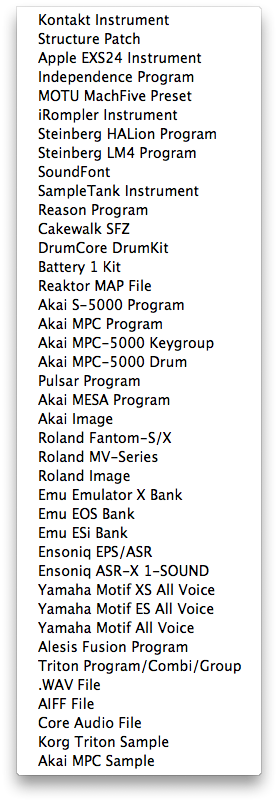
The Action button drops down a menu which allows various methods adding, selecting, deselecting items; plus allows group modifying of Destination File Type.
 |
 |
Also, this screen can be detached from the main window by clicking the Detach button above the right-pane. (See Docking Dialogs for more information.)