Basic Operation
 Basic Operation
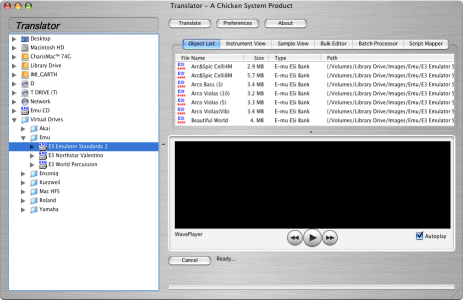
Translator™ uses the familiar Explorer interface on Windows, and the familar Finder (Expose) interface on the Mac, for familiar and easy operation. You translate files by one of 8 methods.
|
|
Translator simply adds to the Windows Explorer concept by adding all the SCSI and ATAPI drives that are available on the system. It automatically detects the format of the particular drive upon startup, and lists only the proprietary ones. You can refresh your system using the Refresh (F5) the screen. ATAPI or USB drives, such as your CD-ROM Drive or a ZipDrive, can be used with proprietary formats as well as SCSI Drives.
NOTE: For ease of explanation, when we refer to SCSI Drives, we mean all the SCSI, USB, Parallel, Firewire, or ATAPI hard drives, removable drives, and CD-ROM Drives on the system.
Your regular Windows computer hard drive(s) is technically ATAPI (which is the new word for IDE), but it is always formatted for DOS, thus it never comes up in the SCSI-ATAPI Drive area. These drives are represented in the upper area as one drive with Logical Drive Letters (a:, c:, d:, etc.)
Depending on how your particular computer is set up, all the SCSI Drives will have a drive letter in the upper area; however, depending on if there is a disk or not in the drive, or if the format is not DOS, you will simply get an error message if you try to access the drive from the drive letter.
In other words, DOS/Windows is the upper area, and all proprietary formats (Ensoniq, Akai, etc.), are in the lower area. This includes Mac disks and Kurzweil CD-ROM's - because of their special circumstances they need to be shown there.
There are other areas you may see - the most common are Virtual Drives and SMDI, and those are covered in other sections.