
|
Preparing and Editing KeyMaps/Layers Externally |
One of the most powerful and innovative features in Kurzweil Creator™ is the ability to drag (or select via menu) an Layer, KeyMap, or Sample outside of Kurzweil Creator and load it into a software sampler like Kontakt or a sample editor such as Sound Forge or PEAK. This effectively gives Kurzweil Creator™ a full-fledged real-time editing engine! Simply edit your object (Layer, KeyMap, or Sample), save it, and focus back to Kurzweil Creator™ - Kurzweil Creator™ will then reference the new information, so when you eventually the save the document, those new changes will write into the new Kurzweil file.
So, what is "preparing"? Kontakt (or any other sampler or editing program) has no idea what a Kurzweil KeyMap or Sample is, so if you dragged that object into it (or tried to load it), it would reject it. "Preparing" is the act of writing behind the scenes temporary files that will be provided to the editing app. After you've "prepared" the Layer/KeyMap/Sample, the List is display it as "prepared", and then your drag to the destination app will be successful.
Future versions of Kurzweil Creator™ will allow you to automatically prepare every object; however, this is something you may not want to do because it may take a lot of time to perform, and chances are you won't be editing every KeyMap. That is why it is implemented as a manual process. You can prepared several or all objects at once though, just use the top-level or Gear menus.
(Note: Currently Kontakt 4.2 and Kontakt 5 are supported formats, however, they do not support modulators, filters, or effects.)
Preparing a KeyMap
| First, locate the KeyMap you want to edit or audition and select it in the KeyMap List. Under Edit Status it says it's Idle; this means it's not prepared. | 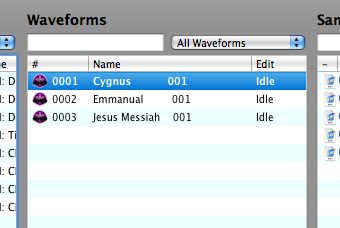 |
||||||
| Click the Gear menu below and select Prepare Selected. Kurzweil Creator will then prepare the KeyMap. You will know when it's done when the Edit Status column shows Prepared. | 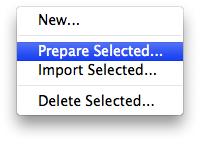 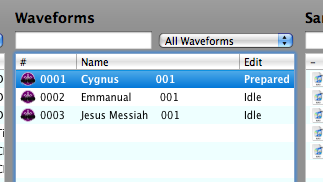 |
||||||
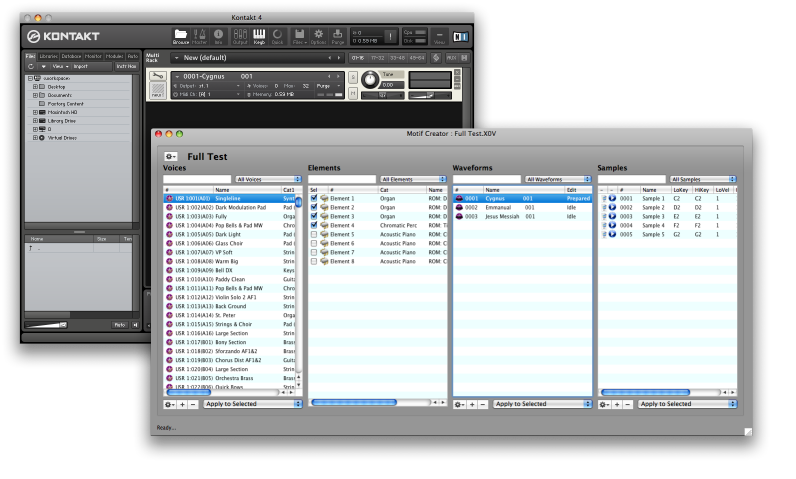
For the purposes of this example we will assume you have Kontakt, Native Instruments super-sampler. Open it up. Then drag the prepared KeyMap out of the List and onto the Kontakt rack. The KeyMap loads right into Kontakt! Now, make some edits, add some samples, whatever. Save the Kontakt Instrument. |
 |
||||||
| Now, go back to Kurzweil Creator™. The program will check to see if the prepared file has been updated; since it has, it updates the display and notes that it has been Imported. See the Edit Status column now; it says Imported. You have edited a Kurzweil KeyMap using Kurzweil Creator™! | 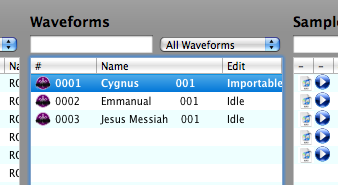 |
||||||
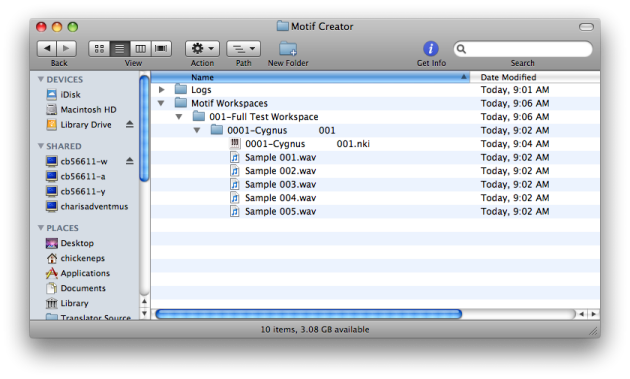
If you'd like to use another sampler besides Kontakt to audition or edit your KeyMaps, you have to load the files manually. As of this writing, Kontakt is the only sampler that fully supports dragging into the interface. The file to load is in the AppData section of Kurzweil Creator:
|
 |