
|
Organization - Search |
Often you want to only see the objects you want to work with. This is where Instrument Manager™'s powerful Search feature comes in handy.
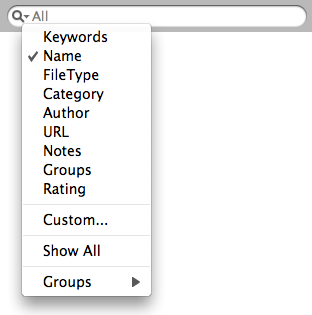 At the top of the Main List is a standard Search Field, similar to what you see on the web or on iTunes. By clicking on the magnifying glass, you can choose under what type you want to perform your search. For example, if you want to search for entries with the phrase "trumpet" in the actual name, you would choose "Name" as the type and you would enter in "trumpet" in the text field. All entries with "trumpet" in the Name will appear.
Search also honors the category that is selected in the Blue Tree; Bank, Instrument, Samples, or a Group if it is selected.
Under Preferences you can choose whether the list will update as you type, or if you want the search to invoke when you hit the ENTER key on your computer keyboard. This can come in handy when you have a large list and you want to go easy on the program.
Here is a list of the different search types:
With textual searches, you have some different choices: Contains, Is, Starts With, In Middle, and Ends With. You can also stipulate if the search is case-sensitive or not. Lastly, you can enter in a delimited set of search terms and select Match All and Match Any. Match All means that an entry must have all the search keywords you've entered. Match Any means just one needs to be matched. Yu can choose the delimiter in Preferences; the default is comma-delimited.