
|
Management - Object Relinking/Reference Manager |
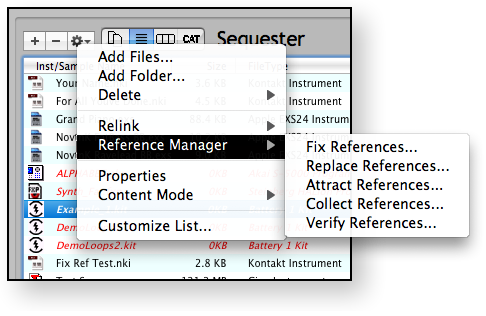
It's become a common feature with software samplers to store a Multisampled Instrument as a small file, defining the mapping and real-time parameters of The great advantage to this is so a Instrument can be edited easily and saved quickly without any maintenance of the samples. (One of the big hassles of GigaStudio, before version 3, was that the samples had to exist in the same file as the mapping parameters. So, when you made a slight change to the structure of an Instrument, the ENTIRE FILE had to be rewritten. Sometimes those files were HUGE!) The great disadvantage is that it's easy to lose track of where the samples are. If you use absolute paths, and you move the samples - the sample files have to be relinked. If you use relative paths, and you move either the samples or instruments in relation to each other, again you have to relink. Add to that the hassle of having duplicate samples - what sample do you relink to? Typically software samplers have not done a good job giving their customers utilities to relink their samples if need be. This is where Instrument Manager™ comes into use. Instrument Manager™ has several different types of relinking techniques it employs:
It's important to keep in mind that a Mac has an additional facility, related to the capability of the HFS disk format, that helps in object relinking. The HFS disk does not categorize a file by it's location; rather, it lists it by a number. When you move a file, it simply links it to a different folder. Instrument Manager™ takes advantage of this capability and uses it to dramatically speed up relinking - it doesn't have to search, by using the HFS disk it already knows where the file went to. Instrument Manager™ usually uses the Sample or Instrument File Name, without the extension, as a hinge point. So if a file references "Trumpet C4.wav", and it doesn't find it but it does find "Trumpet C4.aif", Instrument Manager™ will fix the reference using the AIFF file instead. Or, you can instruct Instrument Manager™ to, instead of fixing the reference, you can convert the sample file to a WAVE file and write a new file. All Relinking options are in the Preferences dialog under the Object Relinking tab. |
 the Instrument, and storing the samples as industry-standard WAVE or AIFF files. Commonly the small file (such as .exs, .nki, .sfz, and other file types) contains a absolute or relative Path to the sample, so when the sampler engine parses the file, it locates the external sample file and loads it.